Install Appendix B
This Appendix covers creating an IIS Website & Application Pool for Digitise Forms. We recommend that you create a new Application Pool and Website for Digitise Forms instead of using the default IIS Application Pool and Website. To do this, follow the steps detailed below.
 Create an Application Pool
First, you will need to create a new Application Pool that the Digitise Forms Website can run under. To do this, open Internet Information Services (IIS) Manager and expand your machine’s branch in the Connections pane:
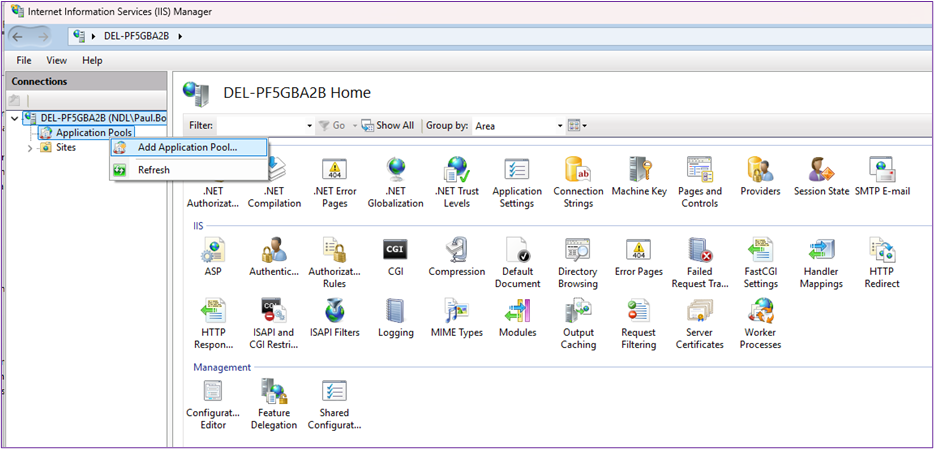
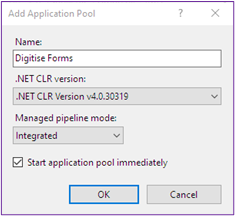
Right-click on Application Pools and select Add Application Pool. This will open the Add Application Pool dialog box. Give the Application Pool an appropriate name, e.g., ‘Digitise Forms’, then select v4.0.30319 as the .NET Framework version:
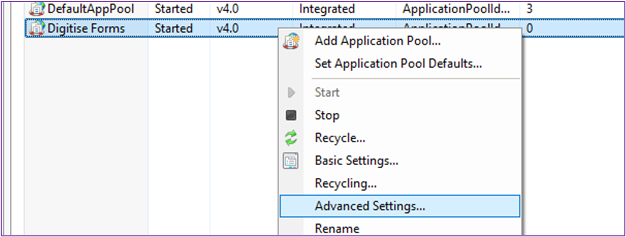
As discussed in the Security Best Practice topic, you should run your Application Pool under a specific service account instead of the Default Application Pool Identity. To change this, right-click on your new Application Pool and select Advanced Settings:
From within the Advanced Settings dialog box, select the Ellipsis on the Identity property to specify the account that will run the Application Pool:
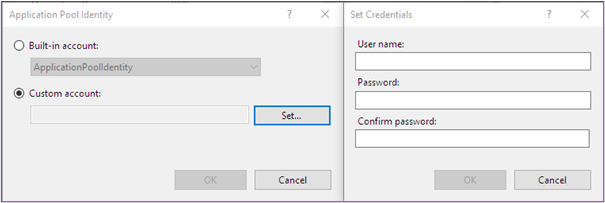
Select Custom Account, then click the Set button. This will load the Set Credentials dialog box. Here, you can enter the Service Account username and password. Click OK to set the Custom Account, then click OK on the Application Pool Identity dialog to update the account running the Application Pool.
Create a Website
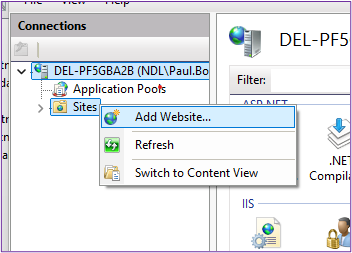
Now that you have created an Application Pool for Digitise Forms, you can move on to creating a Website. To do this, right-click on Sites within the Connections pane and choose Add Website:
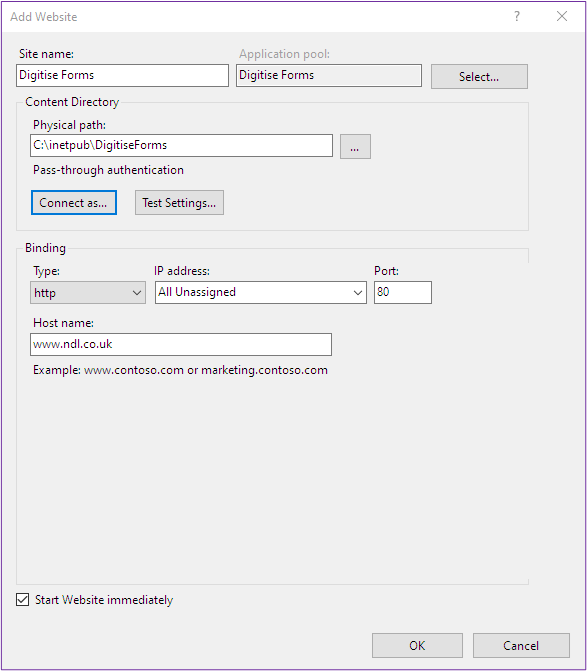
In the Add Website dialog box, enter a name for your Website in the Site name field (e.g., ‘Digitise Forms’). Your Website will automatically run under your new Application Pool by giving them both the same name. If you give them different names, you will need to choose your Application Pool from the list of available Pools, using the drop-down.
In the Physical Path field, you will need to create or select the folder you intend to use, e.g., C:\inetpub\DigitiseForms. If you create a new folder, the IIS_IUSRS account will require permissions to Read and Write to this folder.
Next, you will need to add an appropriate binding for http or https connections to this Website.
The IP Address allows you to restrict access to a particular IP Address, e.g., where you have multiple network cards in the machine, and you only want one of them to be used to connect to this Website. If there is no restriction required, you can leave as All Unassigned.
The Port field allows you to specify the port number to be used for incoming connections to this Website. If there is no conflict with other Websites using the same Host name, you can leave the default ports of 80 for HTTP connections or 443 for SSL connections using HTTPS.
The Host name field allows you to enter the domain name to be used to access this Website from a user’s browser, e.g., www.mywebsite.com. It must match the host name which users will include in the URL used to load your forms. For example, a host name of ‘www.myorg.com’ would mean all published form URLs would begin https://www.myorg.com/applicationname/formname. If you want to use more secure https connections to your forms, you will need to have installed an SSL Certificate to be used for this purpose and you can select the required certificate in the SSL certificate field (visible when you select https in the Type drop-down):
Once you have supplied all of the required information, click OK. This will create your new Website for Digitise Forms.